Add a change order to a signed estimate
When the scope changes after the customer signs, add a change order instead of editing the estimate. The original stays exactly as it was signed.
Updated
-
1Open the signed estimate
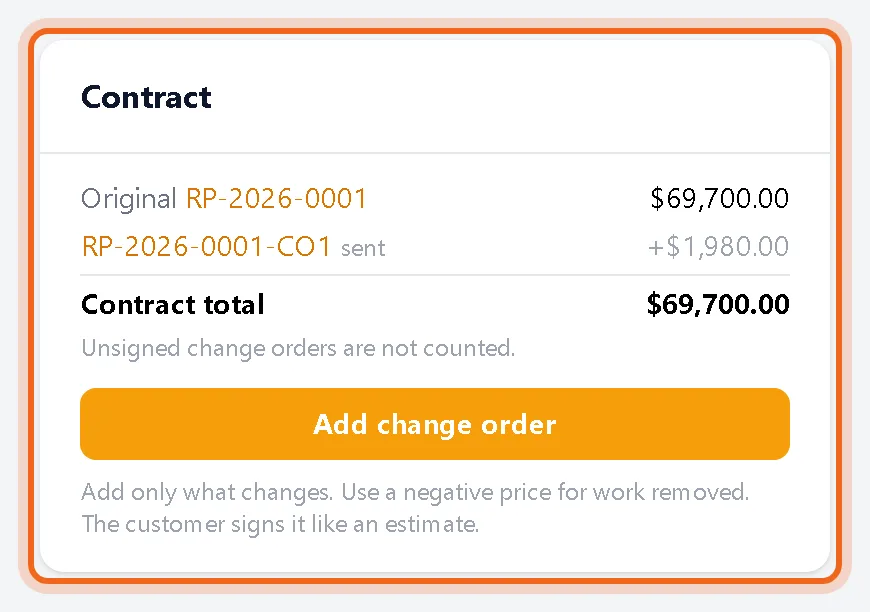
The Contract box shows the original total, each change order and the current contract total. Click Add change order.
-
2Add only what changes
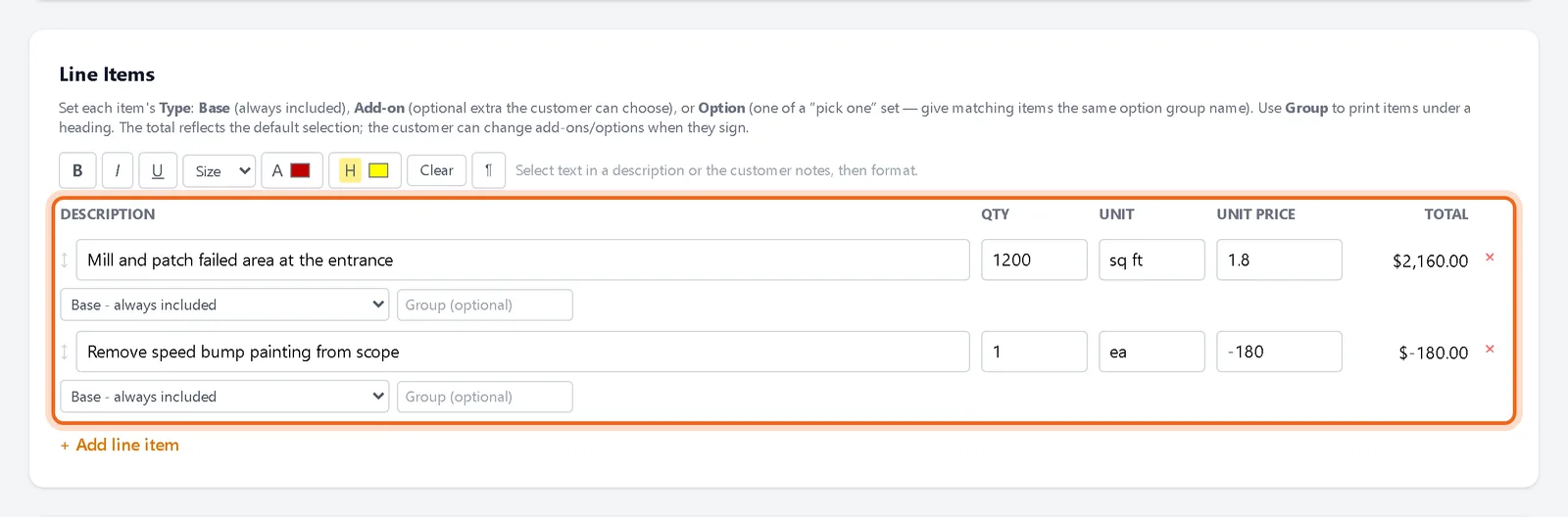
Add a line for each change. Use a negative price for work you take out. Save, then send it the same way you send an estimate.
-
3Your customer signs it
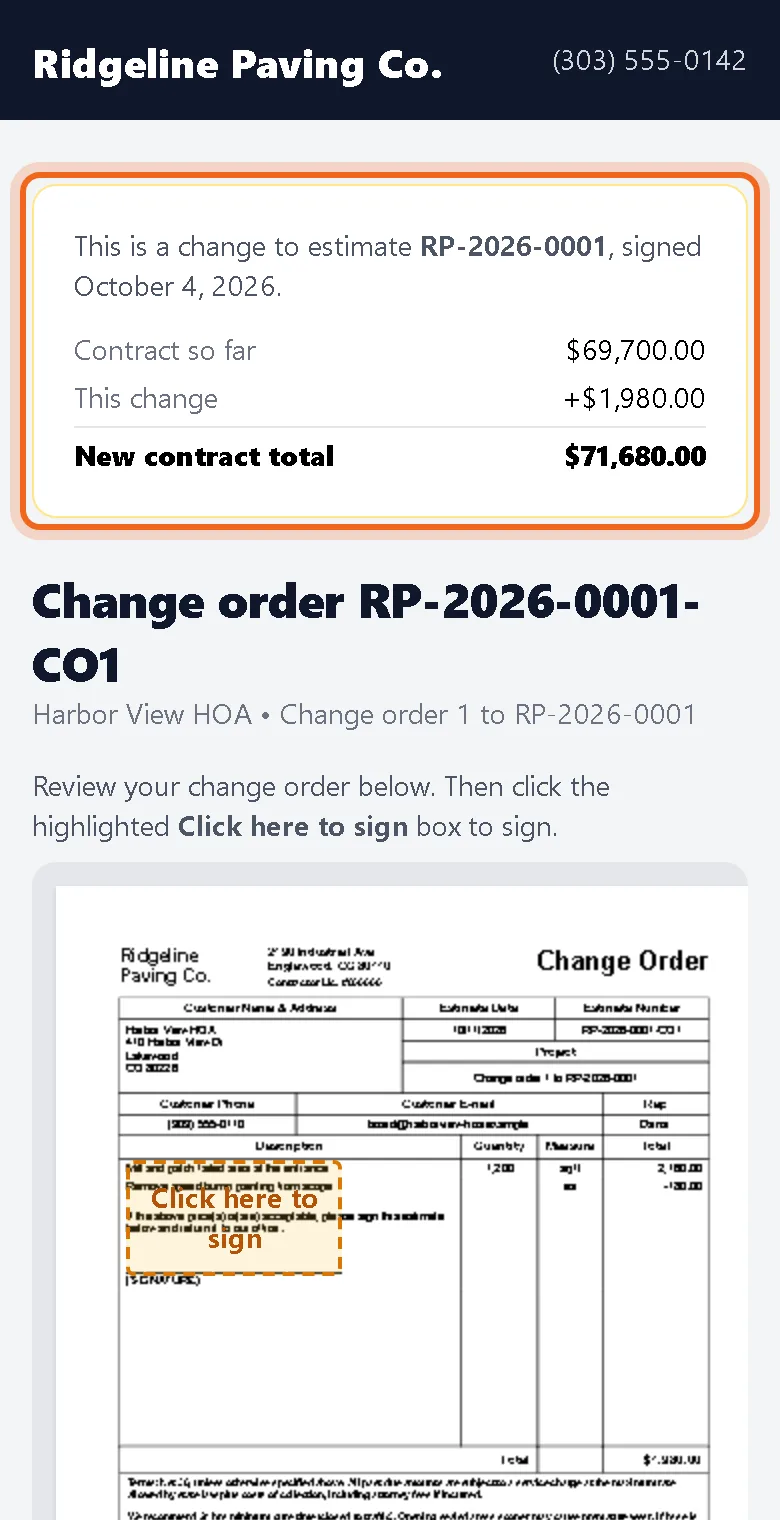
Before signing they see the contract so far, this change and the new total. Once signed, the change counts toward the contract total.
Good to know
- Change orders are numbered after the estimate, for example RP-2026-0001-CO1, and the PDF is titled Change Order.
- Unsigned change orders are listed in the Contract box but not counted in the total.
- Your customer can ask a question or decline a change order the same way as an estimate.
Questions
Can a change order take work out?
Yes. A line with a negative price is a credit and lowers the change order total.
Does the original signed estimate change?
No. It stays locked with its signature and fingerprint. Each change order gets its own signature.