Track every job on the sales pipeline
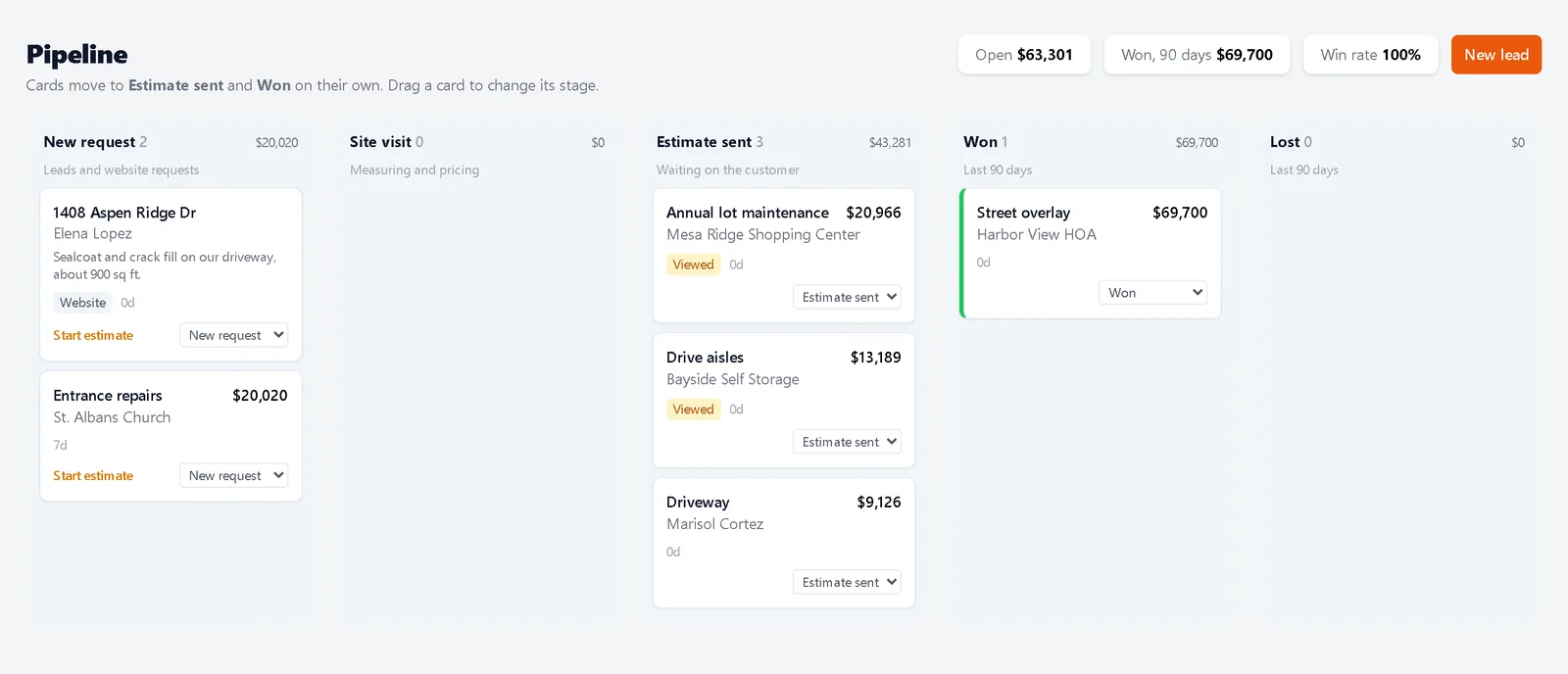
The pipeline shows where every job stands. You only move cards by hand for steps Bid & Sign cannot see, like a site visit or a lost bid.
Updated
-
1Open the pipeline
Click Pipeline in the top menu. Each column is a stage with its count and value. Along the top you see open value, what you won in the last 90 days and your win rate.
-
2Move a card
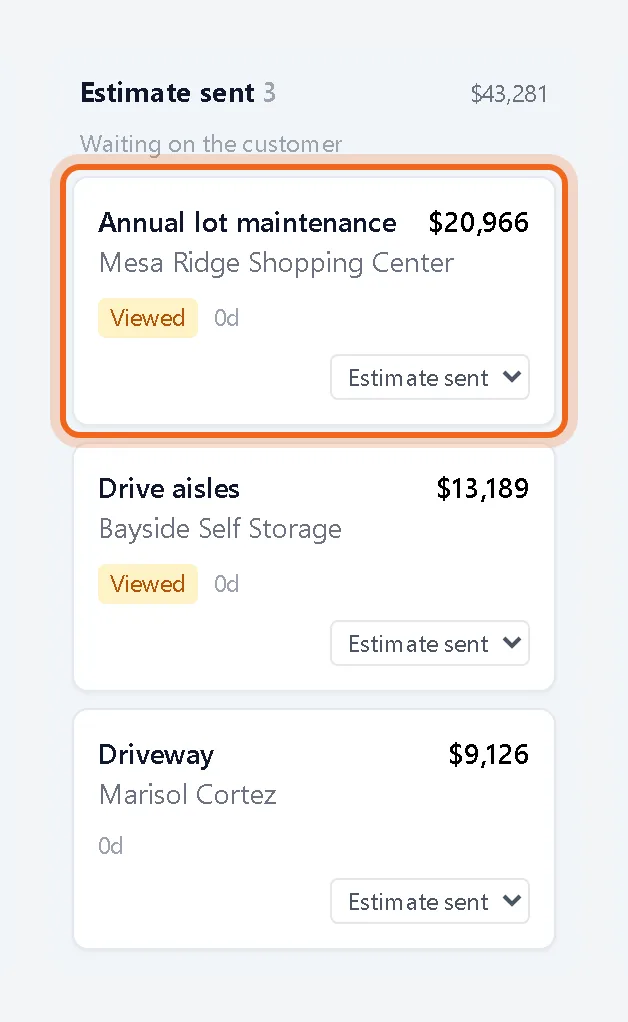
Drag a card to another column or pick a stage from its menu. Sending an estimate moves the card to Estimate sent, and a signature moves it to Won. Moving a card to Lost asks for the reason.
-
3Add a lead
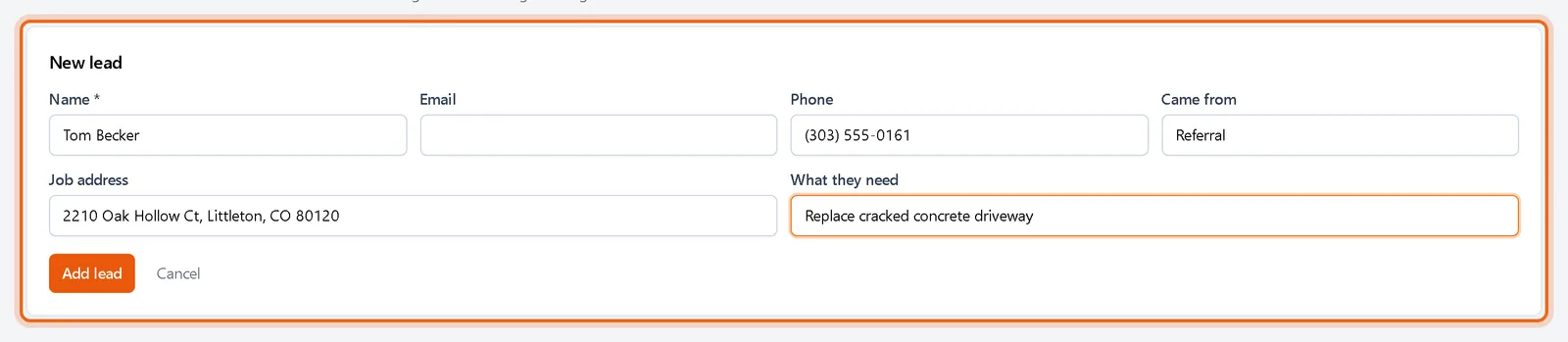
Click New lead for phone calls and referrals and note where it came from. When you are ready to price the job, click Start estimate on its card and the customer and job are filled in for you.
Good to know
- Won and Lost show the last 90 days.
- Jobs that only hold imported QuickBooks history stay off the board.
- If a customer declines and nothing else on the job is open, the card moves to Lost with their reason.
Questions
How is the value on a card worked out?
Won cards show the signed total, including signed change orders. Other cards show the largest open estimate on the job.
Where do website requests show up?
As cards in New request marked Website.