Create an estimate
An estimate is one page of fields on the left and the real PDF on the right. Nothing goes to the customer until you send it.
Updated
-
1Click New Estimate
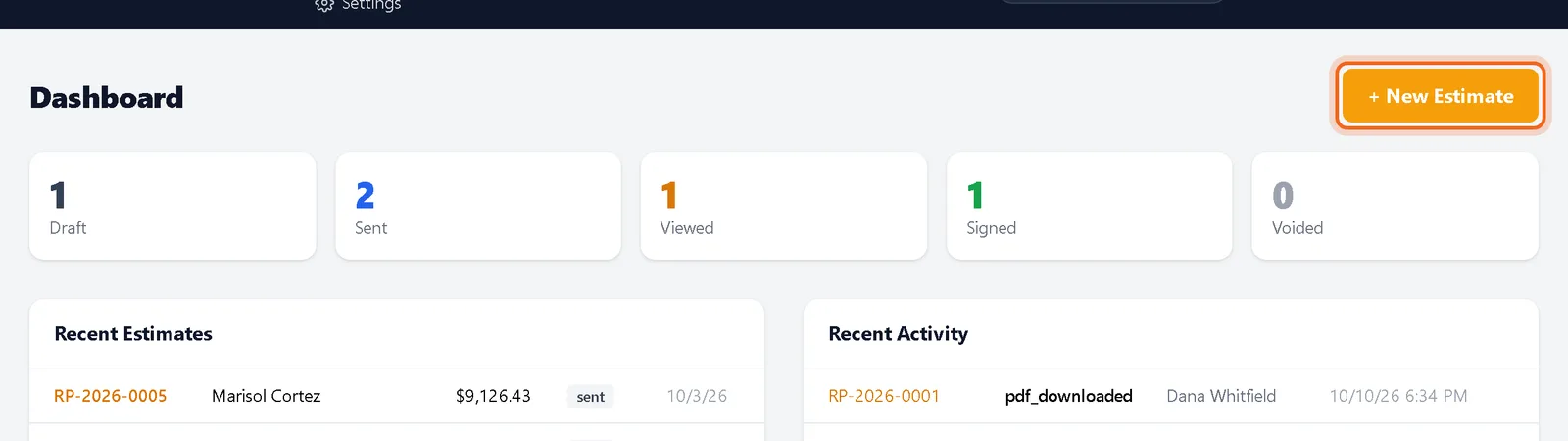
From the dashboard or the Estimates page, click + New Estimate. You can also use the plus button in the top bar from anywhere.
Watch it 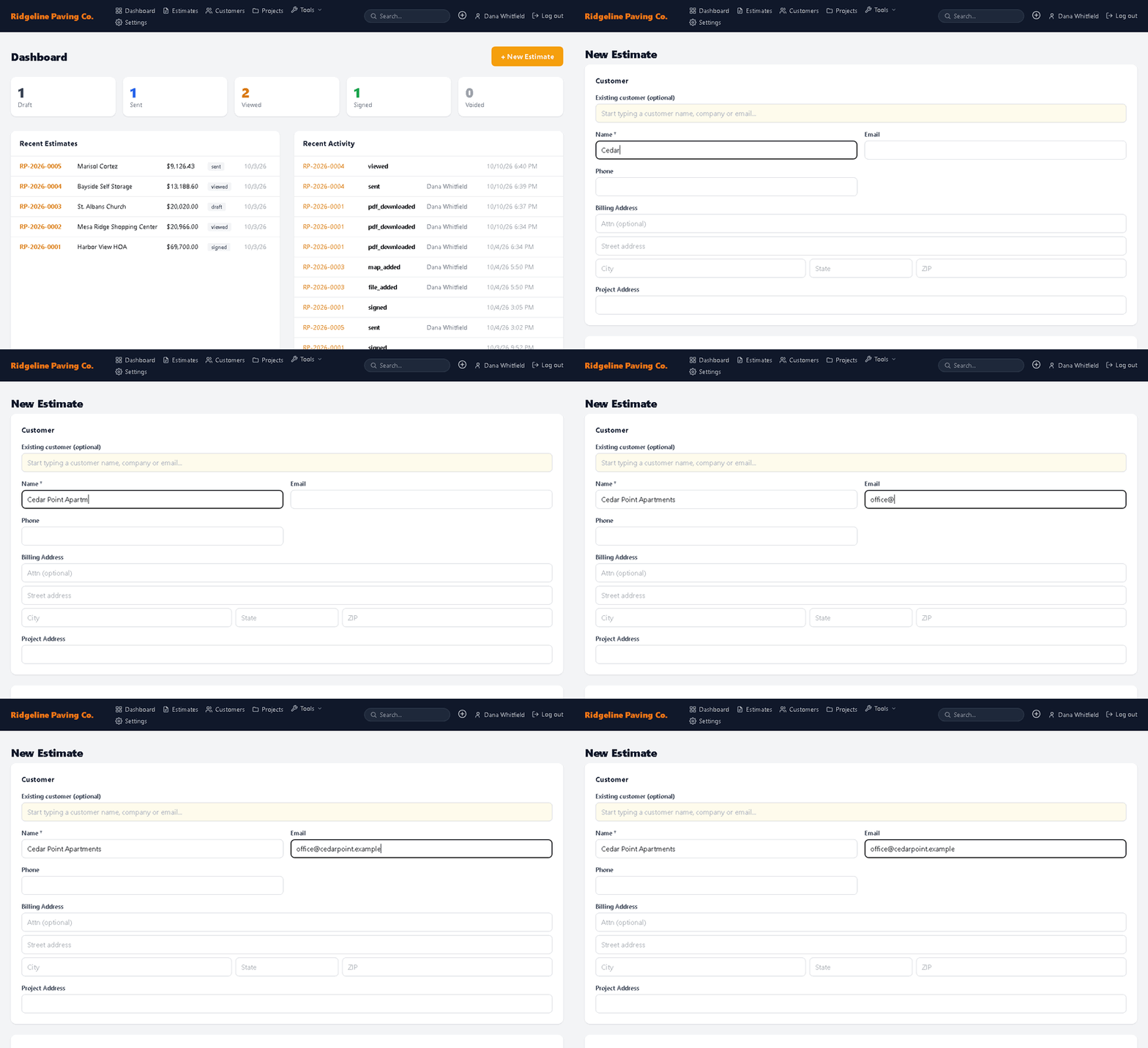
-
2Choose the customer
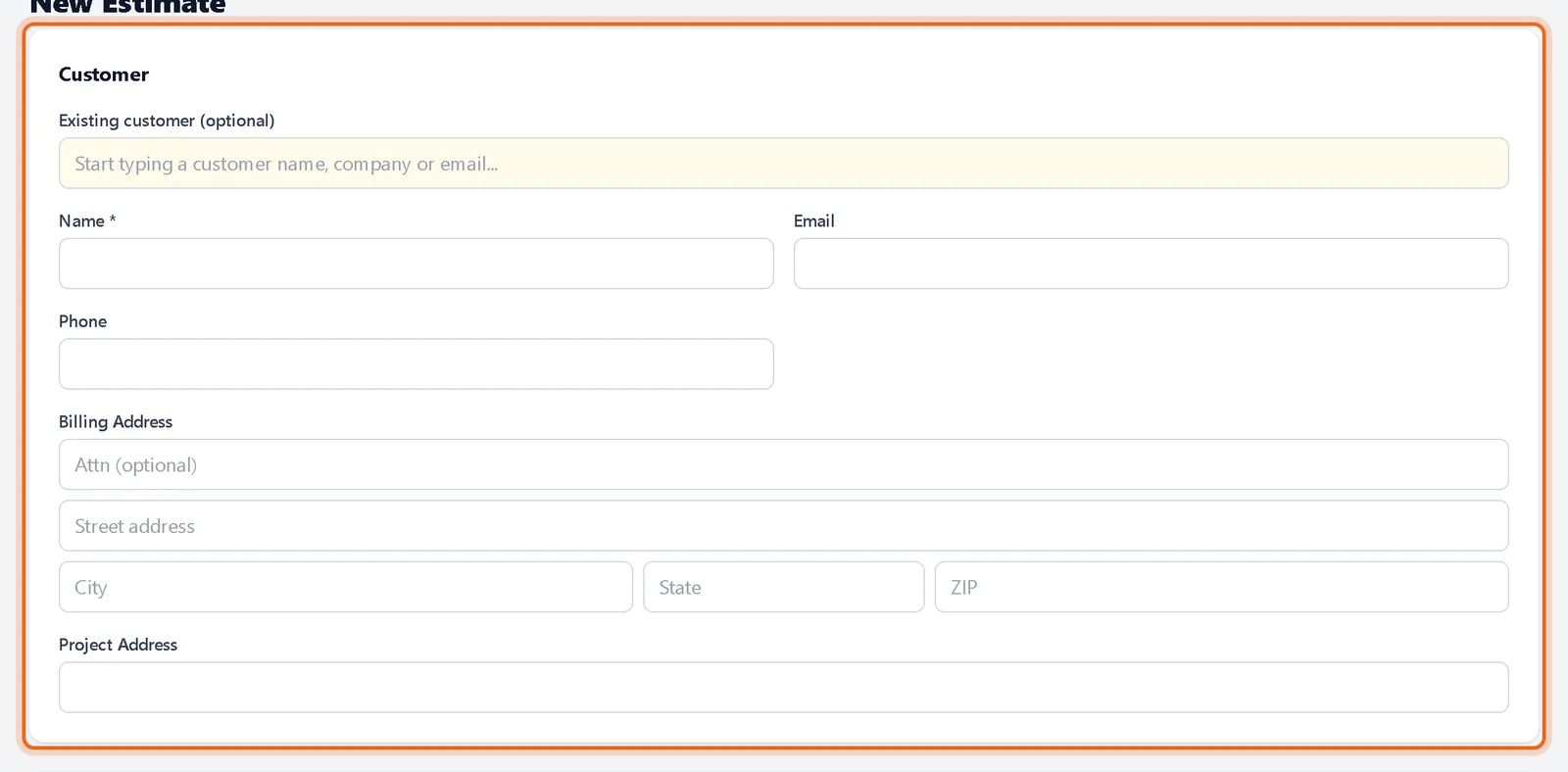
Start typing in Existing customer to pick someone you have worked with, or fill in the name, email, phone and addresses for a new one. A new customer is saved with the estimate.
-
3Add the job details
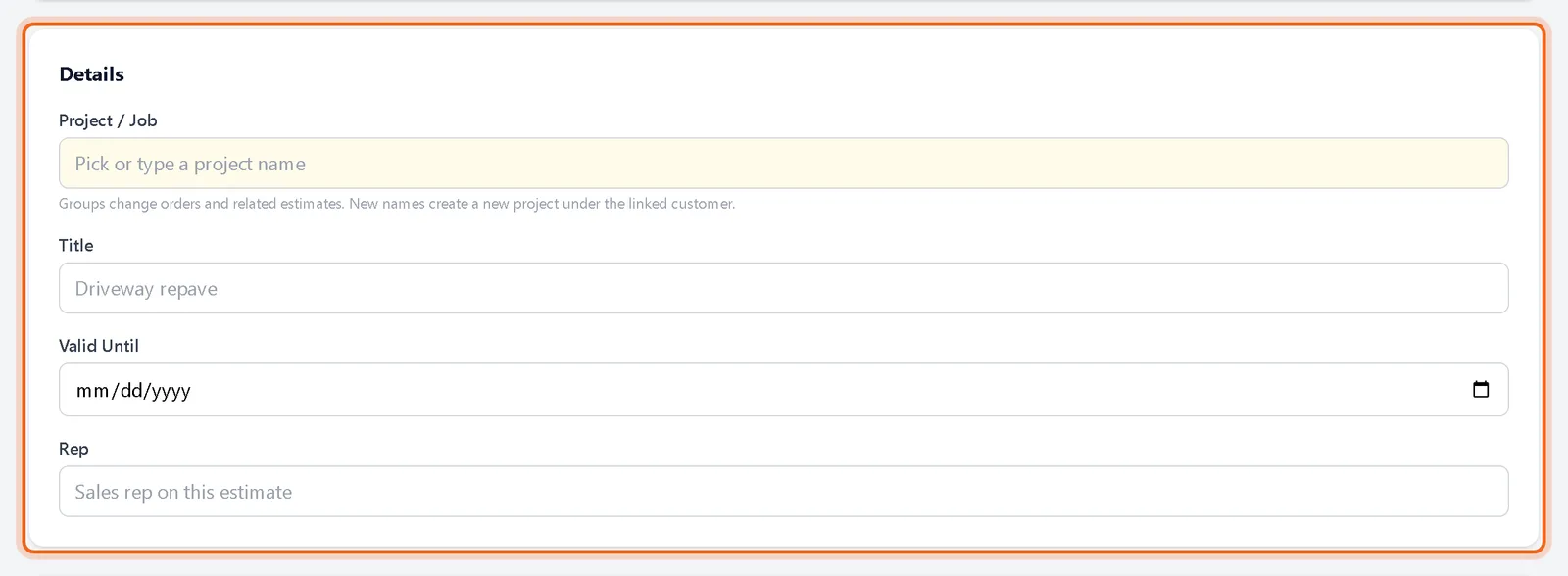
Give it a project, a title, an expiry date and the rep. The project groups change orders and related estimates for the same job.
-
4Add line items
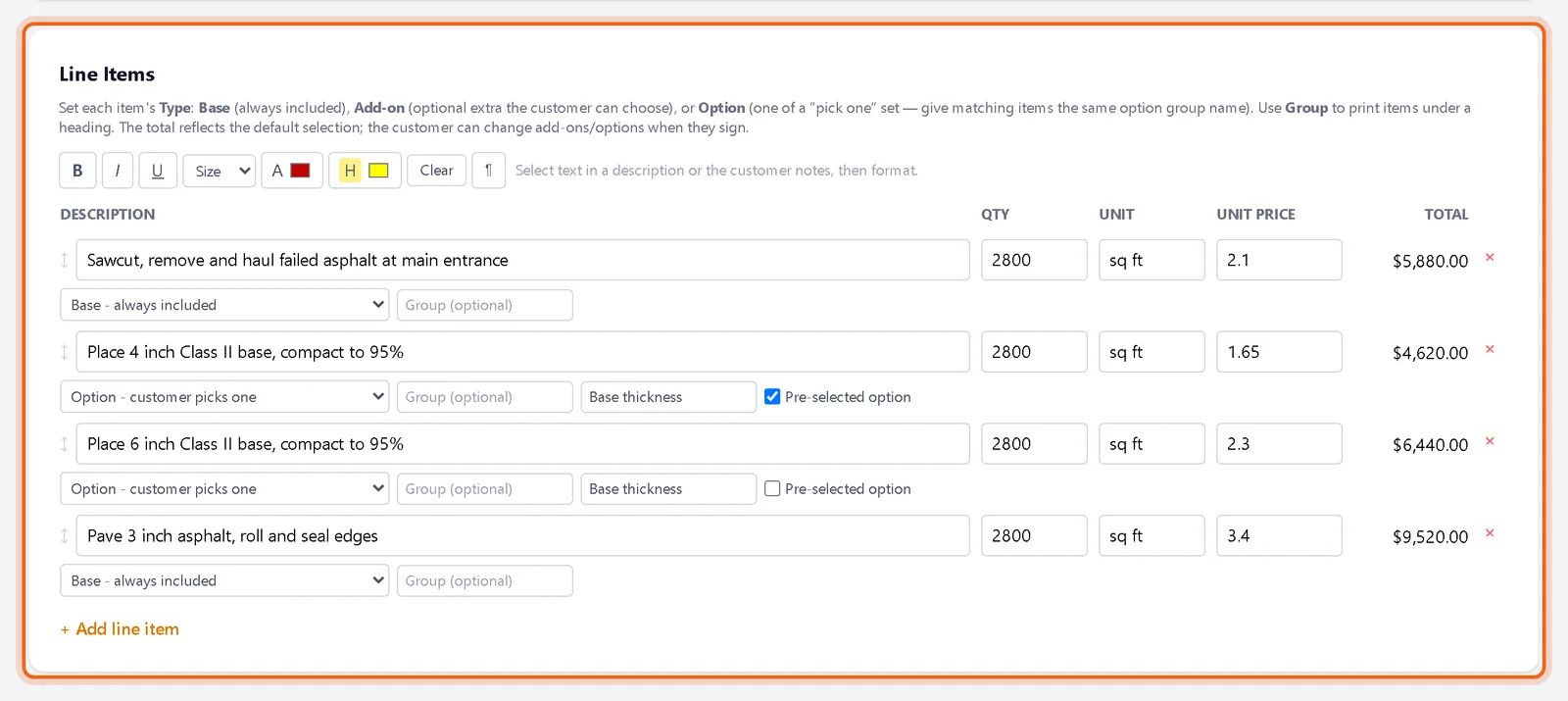
Click + Add line item, then type the description, quantity, unit and unit price. Totals update as you type. Drag the handle on the left to reorder lines.
Watch it 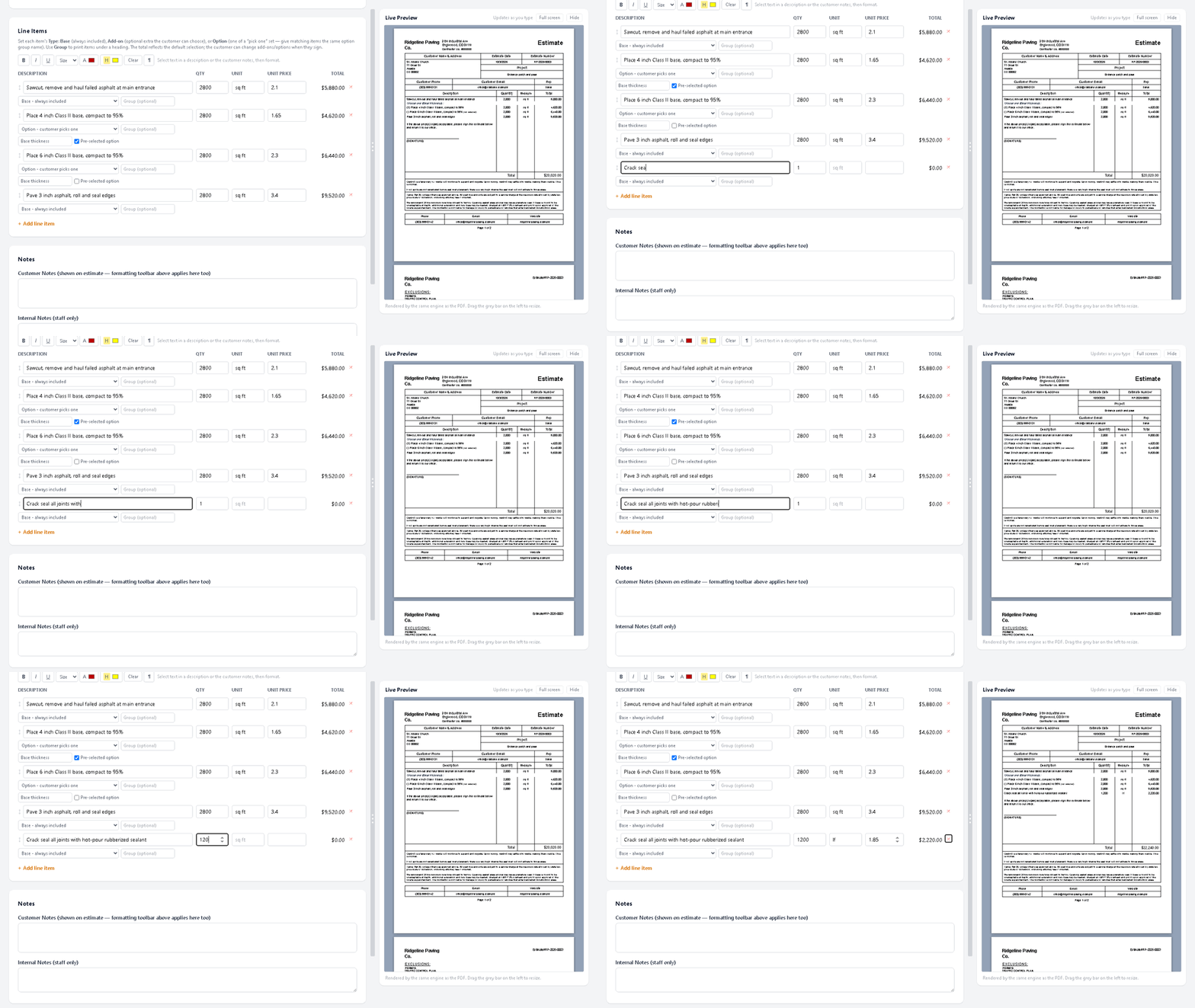
-
5Save
Click Save Estimate. It is saved as a draft until you send it.

Good to know
- Use the formatting bar above the line items to bold or highlight words in a description.
- Internal Notes never print. Customer Notes print on the estimate.
Questions
Can I see the PDF before I send it?
Yes. The Live Preview uses the same engine as the PDF your customer gets. On a wide screen it sits beside the form.
How do taxes work?
Set a default tax rate in company settings and change it per estimate under Totals.