Set up your company profile, logo and estimate defaults
Your company profile fills the letterhead on every estimate PDF and the email your customers receive. It takes about five minutes and only an owner or admin can change it.
Updated
-
1Open Settings
Click Settings in the top menu. You land on the Company tab.

-
2Fill in your company profile
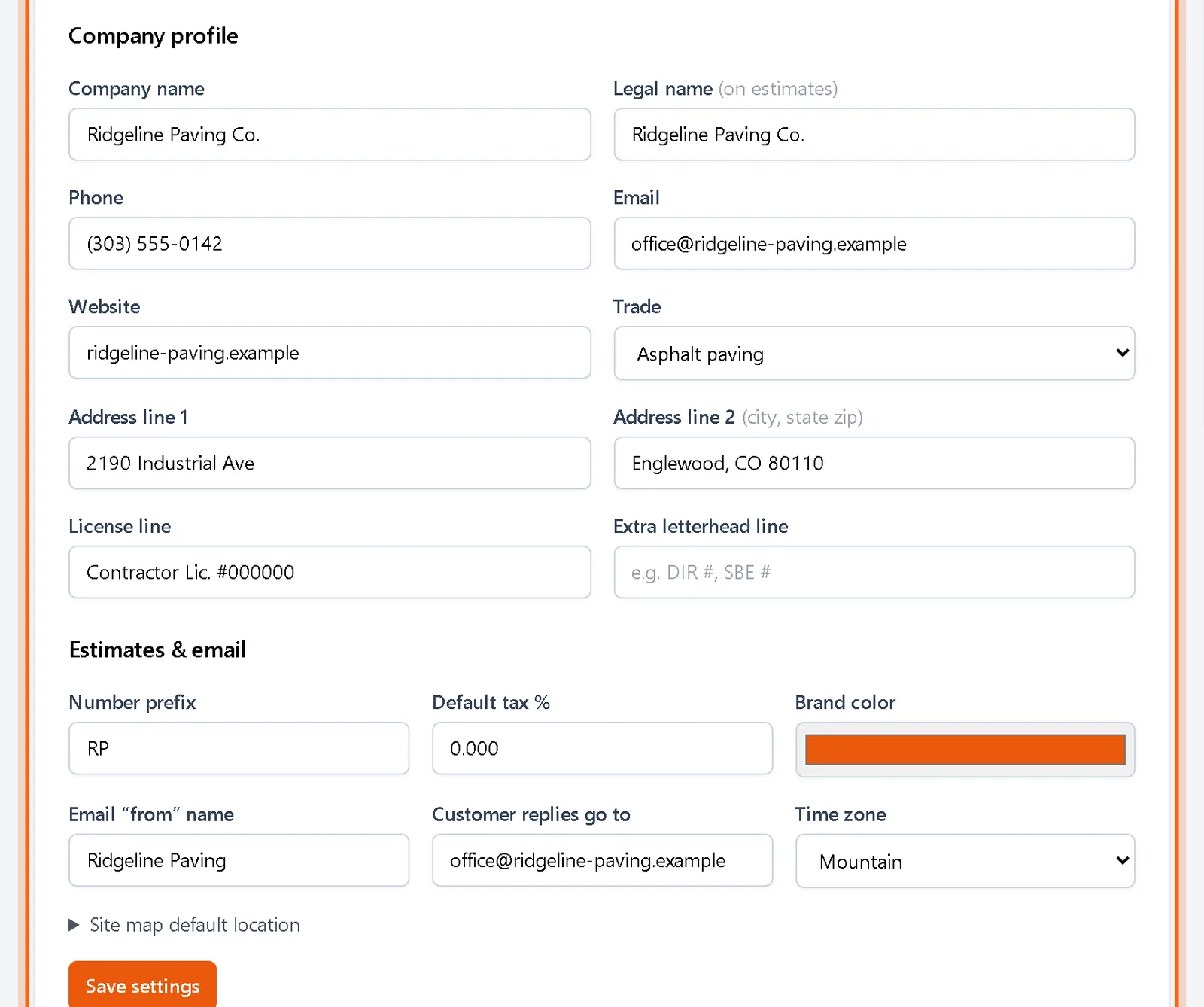
Enter your company name, the legal name that prints on estimates, phone, email, website and address. The License line and Extra letterhead line print under your address on every PDF.
-
3Upload your logo
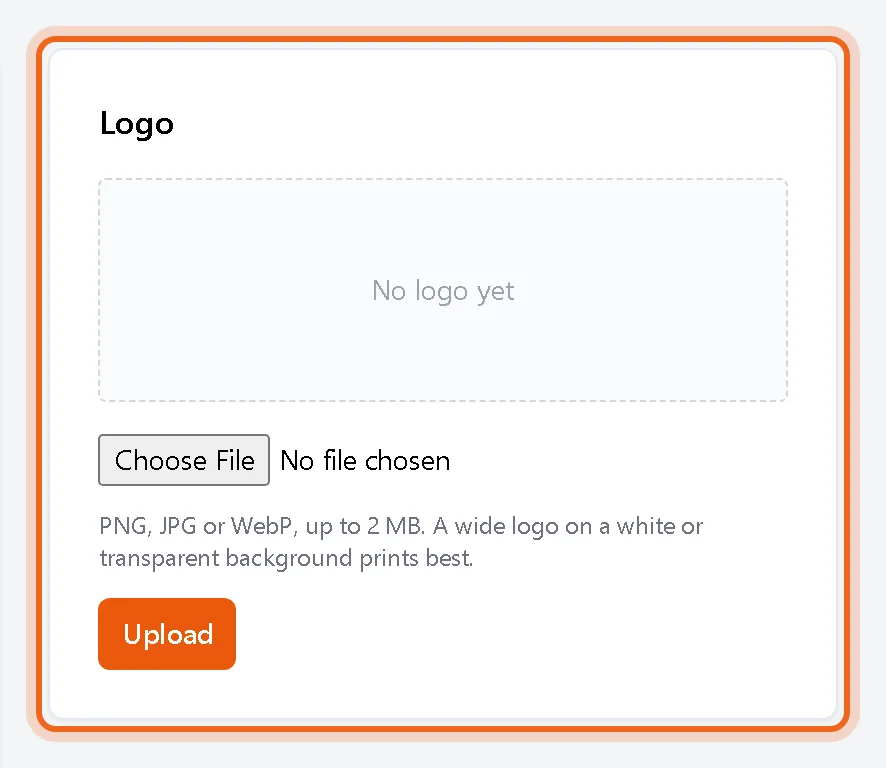
Under Logo, choose a PNG, JPG or WebP image and click Upload. It replaces the text letterhead on the PDF and shows on the customer sign page.
-
4Set your estimate defaults
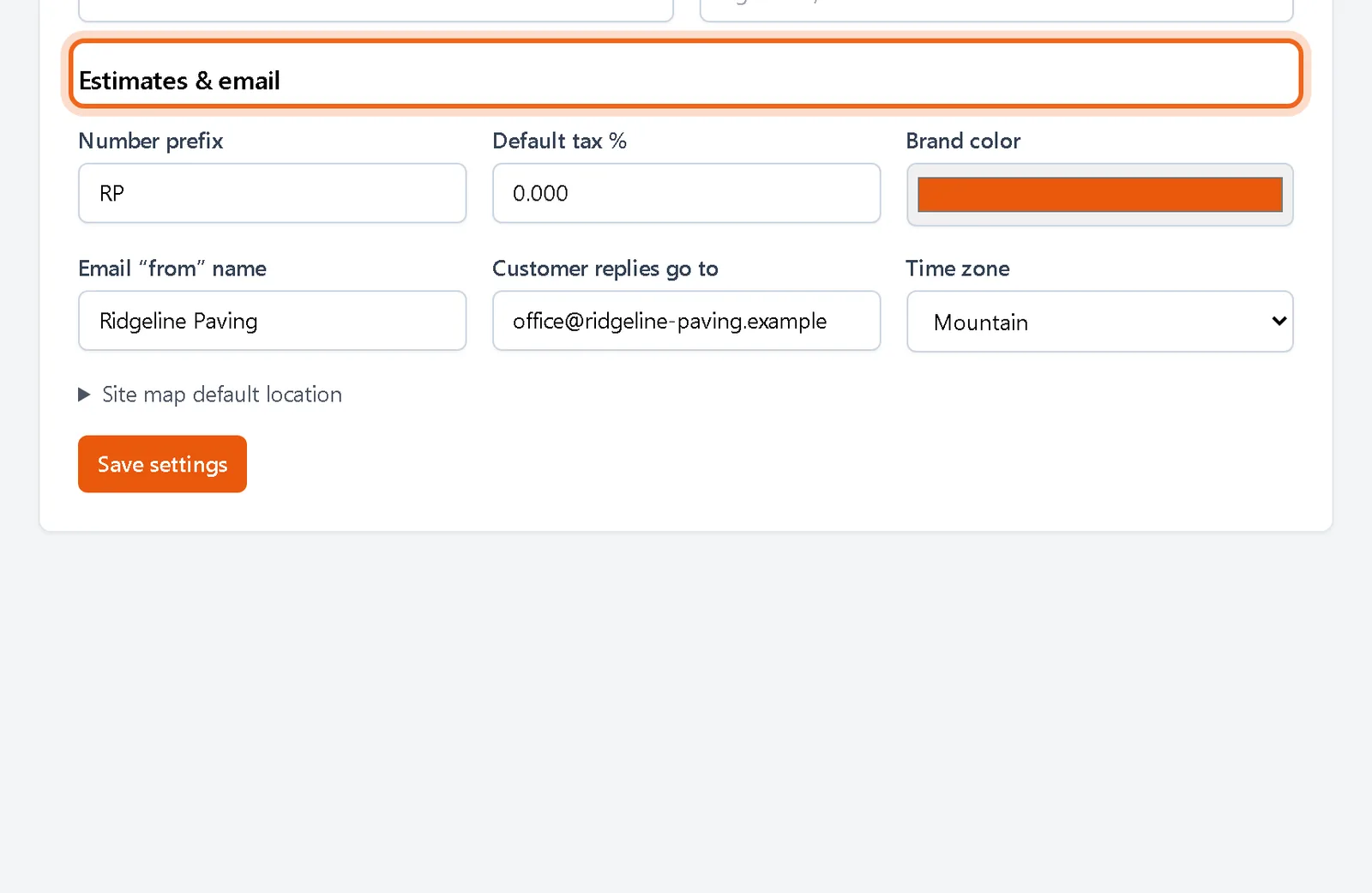
Pick a Number prefix (for example RP gives RP 2026 0001 style numbers), a default tax rate, your brand color, the name emails come from and where customer replies should go. Click Save settings.
Good to know
- Changing the logo or address updates new PDFs. Estimates that are already signed keep the copy the customer signed.
Questions
Who can change company settings?
Owners and admins. Staff can build and send estimates but cannot change the company profile.
Can I change my number prefix later?
Yes. New estimates use the new prefix. Existing numbers stay as they are.